Author Archives: Neil Penman

version-15-03

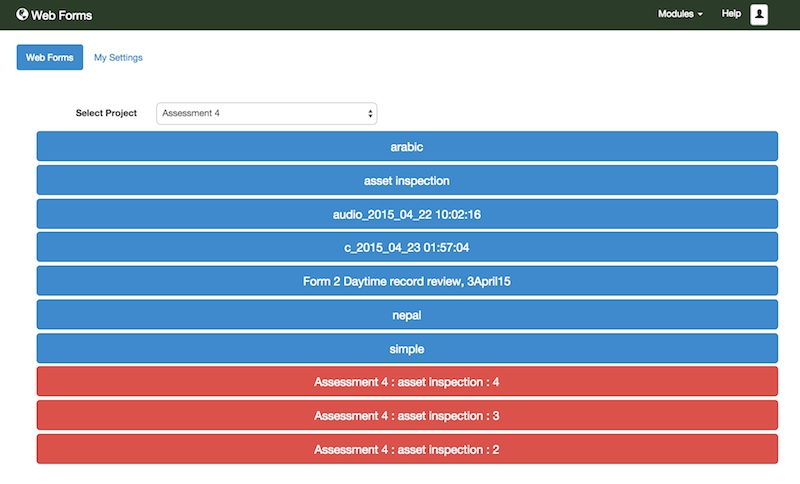
This release is primarily about adding support for iPhones and iPads when they are using Web Forms.  You can now take photos, and videos with your iPhones when completing smap surveys.  I’d like to thank Zarkman for donating an iPhone to Smap Consulting in order to help with the testing of this new capability.

zarkmaniphone

A user changing their settings on the Smap Server using the Zarkman donated iPhone

New Features

iPhone and iPad support

You can now complete surveys on your iPhone and iPad using WebForms. These surveys can included images, video and GPS coordinates.

If you conduct surveys that don’t take pictures then they can be submitted offline and will be stored until you have a network connection. However, when using an iPhone, if you take pictures as part of your survey then you will not be able to save the results as draft.  Also if you are offline when you submit, then the results will not be stored to be submitted when you are back on line.  You will need to stay in the web page until you get a network connection and then re-submit.  You can open multiple pages in order to complete multiple surveys, with images and offline, while using an iPhone.

To complete a survey on your iPhone, use Safari to go to your server. Then select WebForms and finally select the big blue button for the survey you want to complete.

This capability was in large part enabled through upgrading to the latest version of enketo-core as well as being assisted by the sponsorship of Zarkman.

Grid layout for Web Forms

Thanks to the the new version of enketo-core you can layout your web forms in a grid.

grid

An example grid layout from enketo running in web forms

To turn your survey into a web form grid you need to:

1. Add a settings sheet to your xlsform containing

style
theme-grid

2. Add w1, w2 etc to the appearance columns of questions that you don’t want to appear full width.

This example form from enketo has more detailed information.

Email Notifications

The email address to which to send a notification can now be obtained from the survey results.  When creating a notification specify the question from which to get these addresses.  This can be a select one, select multiple or text question. They question can be in a repeating group in which case all the emails entered will be used as the “to” address for the notification.

To specify multiple email addresses in a text question separate each email address with commas.

Getting email addresses from a select_multiple question

The names of choices in a select multiple question are used to create the data base table that stores the results.  These database column names cannot contain ‘@’ or ‘.’.  Hence for select multiple questions you have to modify the way the email address is specified.

  • Replace ‘@’  with ‘_amp_’
  • Replace ‘.’ with ‘_dot_’
emails

Choices sheet to specify notification emails addresses chosen by select_multiple

In select_one and text questions you can simply write the email as normal.

Email Message Text

You can now specify the text to be included in an email notification.  This can be specified for each notification.  Alternatively a default email text can be specified in the organisation settings.

Specifying the email domain

The email domain to be used for emails can be specified at the whole of server level in the “server” table.  Alternatively it can be specified for the organisation in the organisation settings.

PDF Generation

You can attach a PDF of the results to an email notification.  A PDF will be automatically generated using the same grid layout as is available for WebForms.  However in this release its still very much beta code.

More usefully a template for the PDF can be specified in the surveys settings.  Go to the survey editor and click on the “File” menu and then “Settings”.  Fields in the template that have the same name as a question will be populated with the results of the question.

PDF’s  can also be downloaded from a table view of the survey results. Goto the analysis page and create a table containing the survey results.  A menu button will be shown to the left of each record.  If you click on that you have the option to download a PDF or open a WebForm containing the record.  Note this feature is only enabled if the ability to edit surveys is specified in the organisation settings.

Miscelaneous

  • Files in the /smap/temp directory are now deleted each time you upgrade
  • If you rename a survey or delete it and then restore it then you can still download the XLS form that was used to create that survey.

Bug Fixes

The following issues have been fixed.

  • The default language could not be specified in the settings for the survey.
  • If you had two levels or more of repeating groups then when you exported results an unnecessary row containing data from the main form would have been added to the results.
  • Could not add media to questions using Firefox
  • Images of type “ico” were shown in the dashboard with an audio thumbnail
  • Filter values used in cascading selects were not allowed to have spaces.
  • When exporting surveys with more than one “/” in their name then the export failed.

Update (Version 15.03.02)

I have updated the released code to address some relatively minor bugs.

  • Notifications for soft deleted surveys were still being shown in the notifications list
  • The xls template for editing forms has been updated to include the settings tab and a column for the “style”.  You can use this to format web forms in a grid.
  • The link to this blog from the server home page was pointing to the release notes for version 15.02

Update (Version 15.03.03)

Updated for a very significant bug.  The web forms code was not included in the previous release!  So if your web forms was looking a bit flat and not responsive to relevant conditions then this would be why.  Installing this the .03 version should fix it.

 

Version 15-02

This release has the following new features

  • New Menu Bar
  • Export of media files
  • Improvements to Task Management interface
  • User management styled with Bootstrap
  • Form Builder Interface Modified
  • Ability to add media at an organisation level so that it can be attached to questions or choices in any form
  • Performance improvements
  • Added support for select multiple questions where the choices are sourced from an external CSV file.
  • Forwarding, which was broken in release 14.12, is now working again
  • The “from” address and “subject” in a notification email can be specified.
  • The form name will default to the file name when you upload a form
  • Addition of Spanish Translation
  • Updates to French Translation

Menus

The Smap server has been separated into 4 modules:

  • Home
  • Edit
  • Admin
  • Web Forms
  • Analysis
menu

“Forms” page of “Admin” module with modules menu expanded

These modules can be accessed from any page by selecting the “Modules” menu.  To the right of the modules menu will be the menu items to select a page within the current module.

Note there are still some pages that have not been updated with these new menus.

Export of Media Files 

Simply select Export from the Analysis page then select your survey and the export type of “Media”.  You then need to select the question that contains you media.  By default each file will be named with the record number in which it was submitted.  However you optional choice one or more other questions, the results of which will be combined to create the name of the media file.

pics

Options for exporting images to a zip file

The media will be downloaded in a zip file.

Form Builder Interface Modified

The form builder now allows you to edit question text and media for any language in the form.

builder4

Adding media to choices using the new form builder

More details can be found in the training documentation: https://docs.google.com/file/d/0B5_SmpWlQYxvaDVYUGdtNU9MZmc/edit

Task Management

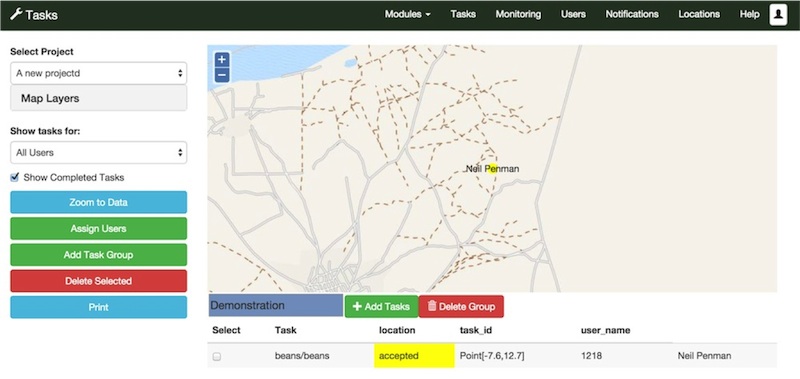
The user interface for the task management page was changed to use “Bootstrap”.  Hence it looks different.  However the behaviour of the page also changed quite significantly.

tasks

Task Management Page

These changes are:

  • Tasks located at location 0,0 are no longer shown on the map. They are assumed to be tasks without location.
  • You can add ad-hoc tasks to existing task groups.
  • Ad-hoc tasks can be created without specifying a location
  • Tasks selected on the map are also selected in the tables and vice versa

For more information on using the updated tasks interface refer to the training material in https://docs.google.com/file/d/0B5_SmpWlQYxvbHBCLW0ySkw2Z3M/edit.

Calculating Nepali Date and Anthro Z-Score

Aaron Mok has contributed an example form that uses Nepali dates to calculate the age of a child and then calculates the Z-Score for that child using their age, weight and height.

nepali month

You can get the form and its attachments from here: https://drive.google.com/folderview?id=0B5_SmpWlQYxvTmFIcDkzSDIyaGc&usp=drive_web&pli=1&ddrp=1#

This form uses the pulldata() function to look up values in a CSV file.   pulldata() is not supported on web forms / enketo so you will need  to test it on an Android device.

I have loaded the form onto the demo server if you want to try it out without loading it onto your own server.

  • url:   http://demo.smap.com.au
  • username:  gplay
  • password:  gplay

Let me know if you find any errors in the calculation so Aaron and myself can fix them.

Managing School Enrolments with Smap

Sometimes your forms need to change quickly.  One such case was suggested by World Vision staff who are working in Syrian refugee camps.  They wanted to record school attendance however new children are arriving daily and hence the attendance roll would be also changing daily.

Putting choices in a CSV file separate from the form can be the answer.   The file name is specified in the “appearance” column.  In the example below the choices will come from the “children.csv” file.  The other parameters to the “search” function are filters so that only children in “class1” are included.

enrol1

Select Question Getting its Options from a CSV File

Choices in external CSV files have been available for a while, however the January 2014 release of Smap will have the following enhancements:

  • Support for select_multiple.  Previously only select_one worked,
  • You can now analyse select questions with external choices in graphs, tables and maps on the analysis dashboard,
  • and, CSV files can be attached to a single form or shared by all forms in the organisation.

Demonstration

This demonstration shows information on new school enrolments being collected using a form and then being added to a CSV file.  This file is then used to record attendance in school and is also used by a separate form to record vaccinations given to the children.

The data can be used in multiple forms because it is loaded to the “Organisation” tab in the media page rather than the “Form” tab. If you loaded different files with the same name to “Form” and “Organisation” then the file at the “Form” level will take precedence.

The files for this example can be found here.

Process

  1. A school teacher uses fieldTask and a form called “enrolments” to record school attendance.  Any new children arriving that day are recorded in a sub form.  (using “begin repeat”)
  2. The back office team copy the details on the new children and put them into the “children.csv” file.  They upload this file to the Smap server where it replaces the existing file.
  3. The next day, before recording attendance, the Teacher presses “refresh” in fieldTask to get the latest form. They can then mark off the attendance of all the children including those that arrived the day before.
  4. A medical specialist using a form called “vaccinate”, presses refresh in fieldTask before checking the children in a class.  This will load the latest vaccination details into their phone.

CSV File

enrol2

Children CSV file

This process is shown in the following video

Automation (Future)

The video showed a back office worker manually copying the daily enrolment data into the children CSV file.  This task could be automated by implementing a custom web page.  Apart from saving some effort for the back office administrators this would also apply updates faster resulting in more current data.

Other Applications of CSV files with Smap

CSV files storing data can be used in other applications, not just for school enrolments and vaccinations.  For example asset management, managing workforce etc.

version 14-12 Notifications

Here is, depending upon your location in the world, the last release of Smap for 2014 or the first release for 2015. The major change in this release is the addition of email notifications when a survey is submitted.  However the menus at the top of each page are also being progressively updated which will probably be the most visible change for most people.

Menu and Style Changes

The “bootstrap” javascript library is being implemented to replace “jquery-ui” and “foundation”.  In this release the following pages have been updated:

  • Form Management
  • Notifications
  • Locations (User Trail)

Pages will look a bit different, here is the form management page:

Menus

Smap has been divided into 4 sections:

  1. Home
  2. Admin
  3. Web Forms
  4. Analysis

These are accessible from a drop down menu labelled “View”.

dd

Drop down “View” menu

In the image above the “Admin” option is greyed out as the view option was selected from “Form Management” which is part of administration.  In a future release another section called “Edit” will be added.

Within each section the menu options will appear to the right of the “view” menu.  For administration these options are:

  • Form Management
  • User Management
  • Notifications
  • Monitoring
  • Locations
  • Tasks

Each section will also have common menu options

  • help 
  • User Settings (an icon that looks like someone’s head and shoulders)

Unfortunately because this new menu layout is being implemented progressively you will find yourself jumping back and forth between the new and old menus as you navigate from page to page.  If you find this unbearable let me know and I will try and make all the pages consistent faster.

Notifications

A notifications page has been added which allows you to request that an email be sent every time a new result is submitted to the server.

Notification Page

The notification page above shows a single notification that will send an email to two email addresses (separated by commas) when a result is submitted from the “modify stress test” survey. The email will contain a link to a web form view of the submission.

Web Form View of a Submission – Accessed by link in email

A log of all the notification events can be seen on the monitor page.

Application of email notifications

These could be used for quality assurance.  A supervisor can set up a notification for each submitted result which they can then review.  A future enhancement may allow filtering so that the emails are sent conditionally dependent on value of the data. Suggestions welcome.

Forwards

Previously you could set up a survey to be forwarded onto another server on the form management page.  Now however, forwarding is considered a type of notification.  Hence you can set up forwarding on the notifications page.

Miscellaneous Changes

  • The email host can be set per organisation.  Previously an IT administrator had to set the address of your email server (smtp_host) in the tomcat web.xml file.  Now it can be set in the users page by editing the organisation details.  Note the value for smtp_host in web.xml is now ignored so you will need to update the organisation.  
  • A default value of smtp_host can be set for every organisation on the server.  This does have to be done by an it administrator in the survey_defintions database using a command like: insert into server (smtp_host) values (‘Your smtp host’);
  • When uploading a new form to the server from an XLS file,  the name of the form will default to the name of the file.  You can optionally change the form name.
  • Increased the width of the line showing the path taken by the user on the locations screen.
  • Previously you could not select a set of survey results for editing if that survey had been marked bad.  This restriction has been lifted. You are now only prevented from editing results if that record has been replaced by another one.
  • Performance improvement to “data cleaning”.  There were some issues in performance last month when multiple people were cleaning data in the same survey simultaneously. Database deadlocks were causing updates to hang which resulted in the server running out of database connections.  These deadlocks have been fixed.


Version 14-11 GPS Trails

Automatic Deleting of Submitted Results

The server can be configured to request that the phone automatically delete successfully submitted surveys.  This improves security on the phone as data is much less likely to fall into the wrong hands if, for instance, the phone is lost.

It is strongly recommended that automatic deletion be enabled.  Currently it is off by default as I don’t want to surprise anyone with the changed behaviour.  However in a future release automatic deletion may be made the default.

To enable automatic deletion edit your organisation and select “Delete submitted results from the phone”.  Only an organisational administrator can do this. Automatic deletion currently will only happen when you use “Refresh” to submit your data.  

Also if you configure the settings in fieldTask to send results automatically then the “refresh” method will be invoked, new form versions downloaded and submitted results deleted.

Recording GPS Trails

Recording of GPS trails for each user can be enabled by selecting a checkbox in the organisation dialog. Its the same dialog that can be used to specify automatic deletion of submitted results.

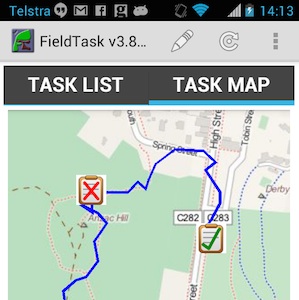
The path taken by the user will then be visible on the phone in the Maps tab, along with each location where they completed a survey.  These survey locations are recorded even if there were no location questions in the survey form.

Map on Phone with user's GPS trail and survey locations

Map on Phone – One task has been rejected, one has been completed

When the fieldTask user presses the refresh button the GPS trail will be sent to the server along with any completed survey results.

The following video shows how the analyst or administrator can review the paths taken by the data collectors.


Privacy Issues

There are potential privacy issues with recording the path taken by the phone users.  For this reason this function is off by default and has to be enabled on the server.  It is advised that you contact the developers to discuss how you might use this feature and what additional privacy measures might need to be included prior to enabling.  Current privacy controls are limited to:

  • The user can switch off GPS
  • The user can switch off recording by going to settings in fieldTask. However it will be re-enabled each time they do a refresh (assuming the server has be set to record the GPS trail)
  • Recording of GPS set to “on” is shown in fieldTask settings
  • The fieldTask map will show the trail of GPS points that will be sent to the server

Miscellaneous

  1. The obsolete Nutiteq libraries used for showing maps on fieldTask have been replaced by the MapBox API.  This is a lot more pleasant to look at and also will support future functionality such as offline and custom maps.
  2. Added translations codes to the Analysis page. Thank you to Baba Sy and Telmo Peixinho for the French and Portugese translations.
  3. Reduced each row on the task list in fieldTask to only have two lines. The appearance is now less crowded.  The forms version number has been put on the same line as the form name and abbreviated to (v: NN)
  4. Reporting of errors in template upload has been improved. These improvements include, checks for read only questions that are mandatory, checks for constraints that don’t refer to the current question, a reduction in unnecessary repetition when reporting on invalid functions.

Version 14.10.2 – Forgot Password

This is the second release in October and contains some more bug fixes as well as some new features that allows users to set and reset their own passwords when they are first added to the system or have forgotten their password.

This release is available for download at http://www.smap.com.au/downloads.shtml.

Adding a new user without specifying a password

This feature requires an email server to be specified in the Tomcat configuration.  Refer to the operations manual for details if you are running your own Smap server.  I am using Google smtp server for my hosted servers however if you are running your own Smap server you can set up your own email server.

When you select “Add User” in the user management screen the default setting will be to send an email to the user. The administrator will not need to specify the password.

forgot1

Send email to user specified by default

The user will then get an email with a link that they can select to set their password.  The email will also inform them of the URL of the server and of the user name they can use to log on with. The link will be valid for 48 hours.  After that the user will need to request a new link by selecting “Forgot Password” on the home screen.

When creating the new user, you can select “Specify password” if you want to set the user’s password as in the case of a data collector.  You should do this if the data collector’s ident is shared by several people.

Forgot Password

If you forget your password you can now reset it yourself, assuming that you have your correct email address recorded against your user account.

  1. Select “Forgot Password” menu option.
  2. Enter your email address and submit
  3. When you get the email, click on the link and enter your new password

You should now be able to logon with your new password.  The link sent in the email will expire after 1 hour.

Uploading multiple large attachments

This release fixes a significant bug whereby if the total size of attachments in a survey exceeded 10MB then some attachments were not processed correctly after being uploaded and could not be seen in the analysis pages.

odk splits large attachments into separate uploads.  Smap has now been updated to process these and merge then into the main upload.  You may see this on the monitor page.

merged


In the above screen shot from the monitor you can see that 4 surveys have been uploaded for media2 and 13 uploads have been merged into these 4 surveys.  In this template there were 4 video questions, the videos were recorded in high definition and each survey had around 60MB of data.

There were also problems with the server configuration which caused “unauthorised” responses to be sent if uploads of large attachments exceeded 5 minutes. This has also been fixed by removing the timeout on the digest authentication for submissions:

               AuthDigestNonceLifetime -1

Miscellaneous

  1. Added Translations for Form Management page. Thank you to Baba Sy for providing the French translations.
  2. FieldTask has been updated so that it only shows the forms valid for the current server.  If you change the server in the settings screen then the forms valid for that different server will be shown instead.
  3. When getting a list of forms to download only those forms from your current organisation will now be shown.  This change only affects users who have access to more than 1 organisation.
  4. When editing survey results using web forms, the dialog with the “edit” button has been removed. If you select the button at the left of the survey record the web form will be opened immediately populated with the existing data.
  5. Fixed a bug where existing data was not adding to a webform if the survey contained questions with names that are reserved for use by the database such as “end”


Version 14.10 – Bug Fixes

This is a minor release with just some fairly minor bug fixes.  These include:

  • French translations have been added replacing the dummy words that I had previously used for testing.  Thank you to Baba Sy for providing these translations.
  • Show an error message if a template is uploaded when the user does not have access to any projects.  (Thank you to Janna Metzler for identifying this issue)
  • Prevent the editing of results that have been marked as “bad”.  For example if they have already been edited and replaced by another record.
  • Fixed several issues with roles.  It now works much better if a user is assigned a role of analyst but not administrator or vice versa.  A user with only enum rights can now also use webForms.
  • Replaced links to the old help pages with links to the google drive holding the documentation
  • Prevent a malformed template being created if you upload a completely empty template.  This now reports an error and does not create the template.  Previously it reported the error but still created a template that could not be run on fieldTask
  • Fix paging through results on the monitor page. Previously the page buttons were hidden.
  • Thumbnails were not being created for pictures with an extension of JPG (in capitals)
  • Support added for select multiple questions when exporting to Neo4J
  • Only allow a single select multiple question to be exported to a Neo4J node or relation
  • Prevent Neo4J labels from having spaces
  • Improve clarity of reporting errors in templates when using template upload.  Multiple redundant messages were previously created when calculate questions with lots of parameters had circular references.

The server can be downloaded from http://www.smap.com.au/downloads.shtml.


Version 14.09 – Form Refresh and Export to Neo4j

Version 14.09 of Smap is available for download.

Refresh – Synchronising phones with the server

The refresh button on fieldTask now does more than just clear the submitted results from the screen. It also now refreshes the forms that you have on your phone and submits any finalised results.  Note you will need to download fieldTask version 2.3.5 from your server on to your phone to use this new feature.

Pressing refresh will now:

        • Download new forms from the server that have been assigned to the user of the phone
        • Show available forms with a yellow clipboard icon
        • Update forms on the phone that have a new version
        • Delete forms from the phone for which the user no longer has access
        • Submit finalised results from the phone to the server
        • Notify the server of the list of forms and their version that the user has downloaded to their phone

You can select a form from the task list screen to complete a survey.  The name, version and project containing the form are shown next to the icon.

device-2014-09-20-090412

Phone with two forms

This new feature should simplify the training of the data collectors as the steps they need to download new forms, start a survey and submit results are all simpler.

Checking that data collectors have the correct version of a form

Sometimes it can happen that data collectors go out into the field with the wrong version of a form on  their phone.  At worst this may have an impact on quality of the collected data and at best you will need to do some messy combining of the data from the two forms prior to analysis. This new feature makes it much easier to check that all the data collectors have the correct version of the form.

From the monitor page select forms.  This will show the users, phones, downloaded forms and the versions of those forms that have been downloaded.  Any users / phones that have not downloaded a form or have an older version are highlighted.

monitor

Monitor Downloaded Forms

 Exporting results to Neo4J / Thingsat

You can now export results to the Neo4J graph database. This change was developed in collaboration with thingsat.  The following video shows how this can be done.

Other Changes

  1. You can edit collected data using web forms.  This capability is enabled by an administrator for your organisation.  By default it is off.  If you select a table showing data for the whole of survey then there will be a button next to each data record that will open the survey results in a web form. If the data is updated the old results will be marked as bad, and then the updated results added.
  2. When you attempt to submit results from a phone for a survey that has been deleted on the server then the error message will be “Not Found” rather than “Not Authorised”
  3. The error message shown, if you upload a survey template that has duplicate options, has been made clearer

Moving a form to a different project (New in 14.08)

This is a new feature in version 14.08.  You may find that you have too many forms in a single project which is confusing to the data collectors as they may not be sure which form they need to download and complete.

You can create additional projects in the user management screen and then move some of the forms into one of the new projects.

1. First click on the form name in the template management screen.  This will take you into the form editor.

settings

Settings page of form editor

2. Select the project that you want to move to

3. Click on the “Save Settings” button

This will change your default project to the new project so if you want to move another form you will need to select the old project again then repeat the process