
New Features
DHIS2 Integration
Smap and DHIS2 complement each other, together they provide a complete solution. Smap provides the operational layer, where individual work gets assigned, completed and closed in the field, often offline and on mobile devices. DHIS2 provides the information layer, where results are aggregated, indicators are computed and programs are managed nationally. Running both, with data flowing automatically from one to the other, is better than forcing either to do the other’s job.
Connecting to a DHIS2 server
A connection can be set up between a Smap organisation and a DHIS2 server. You will first need to create a user in DHIS2.
- This user must not have two factor authentication enabled as DHIS2 refuses a personal access token that belongs to a 2FA account.
- They must have “Data capture and maintenance” permission for organisation units that will be supported by the Smap instance
- Give the user the “Data entry clerk” user role, or any role granting the Add/Update Data Value authority (F_DATAVALUE_ADD).
- In the DHIS2 maintenance app, open the data set you need to update, edit it and select “Sharing Settings”. Add the user and specify that they can “Capture and View” data.
- Get the user’s access token, allowing both GET and POST. Copy it when it is shown, as DHIS2 only displays it once.
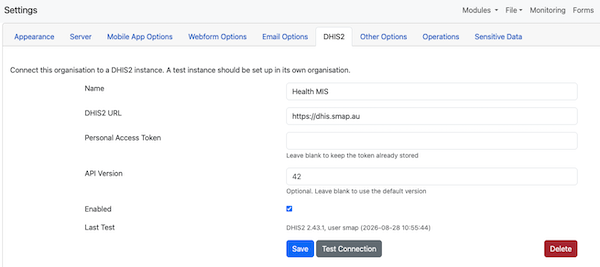
You can then specify the connection in the DHIS2 tab on the Smap settings page. Paste the personal access token into the settings.
Lookup DHIS2 Reference Data
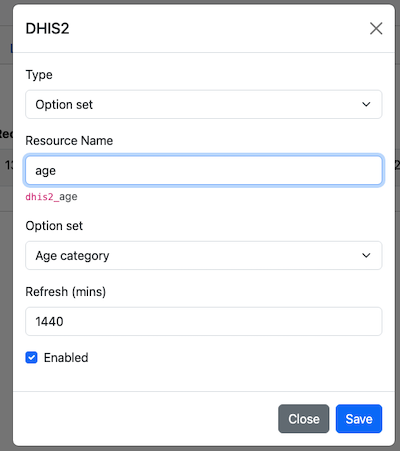
The Smap shared resources page has a tab to add DHIS2 reference data. Click on the “Add’ button. In the dialog you can select one of two reference types; “Organisation units” or “option set”. Organisation units will create a CSV file containing the organisation hierarchy from your DHIS2 server (you can specify a filter if not all organisations are relevant). Alternatively if you select “Option set” you can select the specific option list that you want to add as a CSV file. The resource name that you specify will be used in your search and pulldata functions to access the reference data.
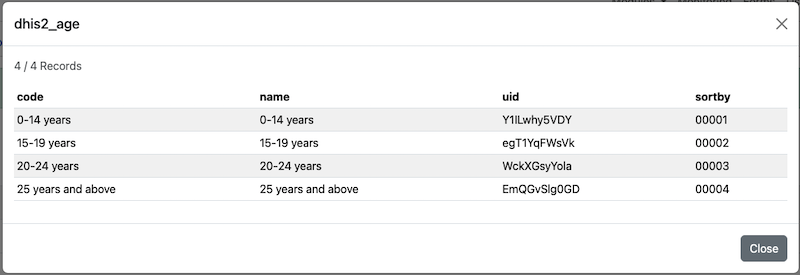
The tab will then display the added dhis2 resource data sets.

The data will be refreshed on a daily basis, or you can manually press the refresh button for the resource. You can click on the list button to see a preview of the resource data.
Creating Data Items in a Survey to send to DHIS2
If you create a case management system for a clinic your focus will be on using this to manage individual patients. You don’t want to spend time entering data as required by DHIS2. Hence most commonly you would add these data elements as calculations. For example you might record patient age and whether they have been diagnosed with malaria. But the DHIS2 data set might want a count of children under 5 with malaria, total patients under the age of 5, people over 5 diagnosed with malaria and total patients over the age of 5. So 2 questions in your patient administration system need to be converted into 4 data values for DHIS2. You can do this with calculations:
under 5 patients:  if(${age_years} < 5, 1, 0)
over 5 patients: if(${age_years} >= 5, 1, 0)
under 5 with malaria:  if(${age_years} < 5 and ${malaria_confirmed} = 'yes', 1, 0)
over 5 with malaria: if(${age_years} >= 5 and ${malaria_confirmed} = 'yes', 1, 0)
The above calculations set the value to 1 or 0. This would be the most common approach as then each record will increment DHIS2 aggregate values by 1 or leave them unchanged.
Mapping Smap Data to DHIS2
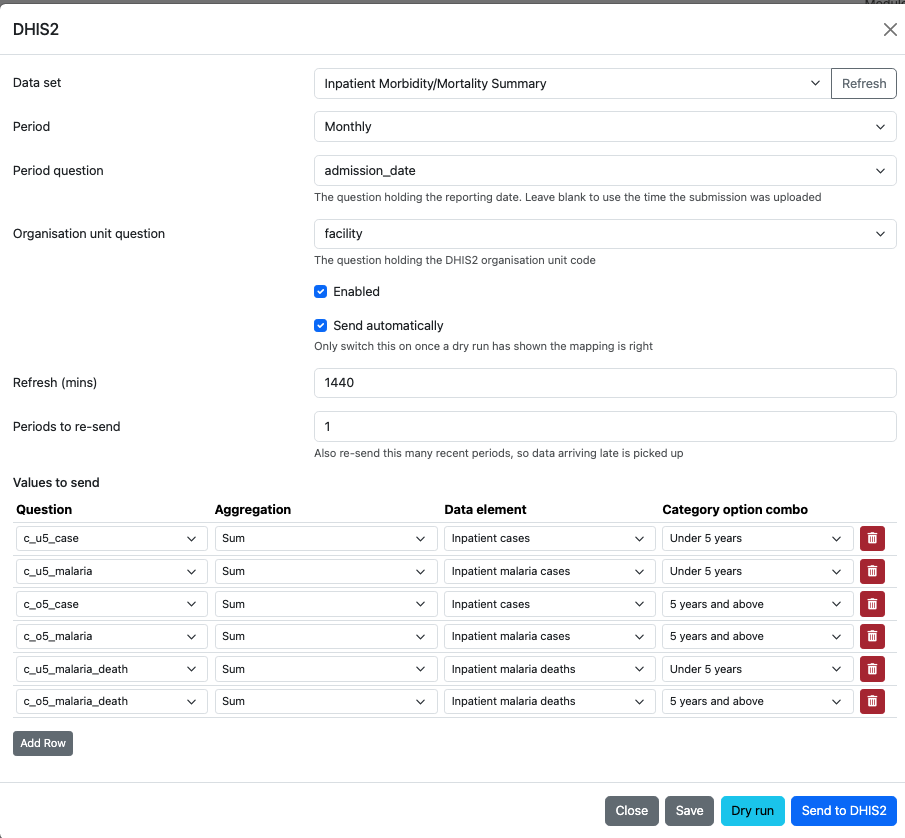
You will need to set up a mapping between your questions and the DHIS2 elements in a dataset. This is set at the “Bundle” level. In the online editor select “Bundle and Case Management” from the Tools menu, then select the DHIS2 tab. The bundle can update multiple DHIS2 data sets and these will be listed in the tab. Select “Add” to add the mapping to a new dataset. Each dataset will have multiple data items that can be updated. Click on the “Add Row” button to add a mapping between a question and one of these data items.
Sending Smap Data to DHIS2
There are 3 ways to send data to DHIS2
- Click on the “Send to DHIS2” button in Mapping Dialog shown above
- Rely on automatic synchronisation at the refresh interval that you specify
- Create a notification to send the data when the case is updated
It is recommended that you use both the notification and the automatic refresh. The notification will keep DHIS2 up to date in real time as the data changes, the automatic refresh will fix any dropped synchronisations due to network errors etc
Workflow Enhancements
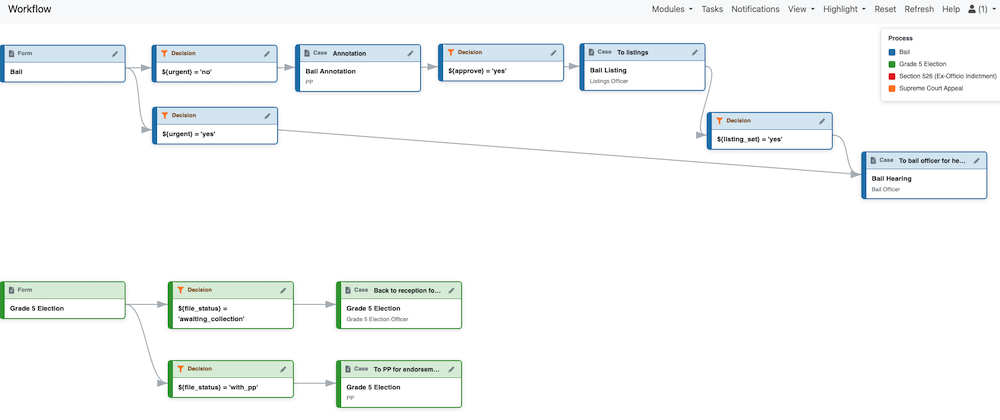
Highlighting Workflow Items by Process
Previously this could be done by selecting the menu “Highlight” and then “Bundle”, however it has been improved in the following ways:
- The label “Bundle” has been replaced with “Process” as surveys grouped into a single Bundle can also be considered as collaborating on a process
- The highlighting is clearer with the whole element changing colour
- The menu option “Reset” orders the layout of the workflow elements vertically by the process that they are in
Viewing Who Does What
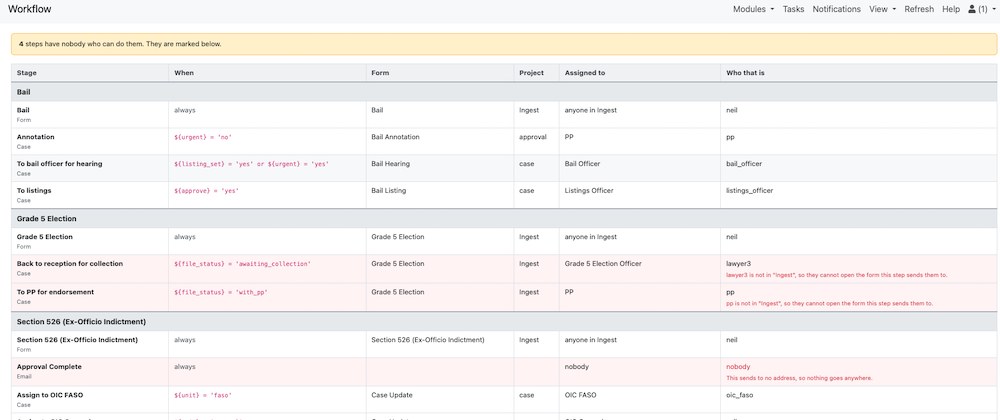
There is now a menu on the workflow page labelled “View”. If you select that you can choose “Who Does What” and see a table of which user or role is assigned to each stage of a process. This also shows an alert if there are stages of a process that do not have anyone assigned.
Other
- CSV Files are zipped before being downloaded to FieldTask. Previously dynamic compression was used but this was inefficient, especially for CSV files not affected by RBAC. (Requires FieldTask 5.4+)
- CSV File downloads are restarted after an error at the point at which they stopped which should improve connectivity when the connection is poor. (Requires FieldTask 5.4+)
- Values entered into the “search” control in the console now persist until removed or reset. “Search” is the control that filters records matching text.
- Downgraded iText from version 8 to version 5.4. This was due to multiple problems introduced by the later version of iText.
- Check for SMTP email servers responding with “limit reached” and put the email back in the queue. This email send is then not retried for 60 minutes. This reduces the load on email proxy servers.
- Refuse to delete SharePoint and DHIS2 shared resources if they are still in use by surveys
- Improve the efficiency and reliability of automatic synchronisation between a server and FieldTask
- Reduce the TTL for the Apache web server so that idle pool connections are discarded before they time out. This reduces the number of times a client has to re-request data after a network error.