Category Archives: Uncategorized

Version 14.05

Announcing the release of version 14.05. If you are installing or upgrading you can download from http://www.smap.com.au/downloads.shtml.  I’ll be rolling this release out to other servers I manage over the next week.

New Features

Humanitarian Openstreetmap Layer (HOT)

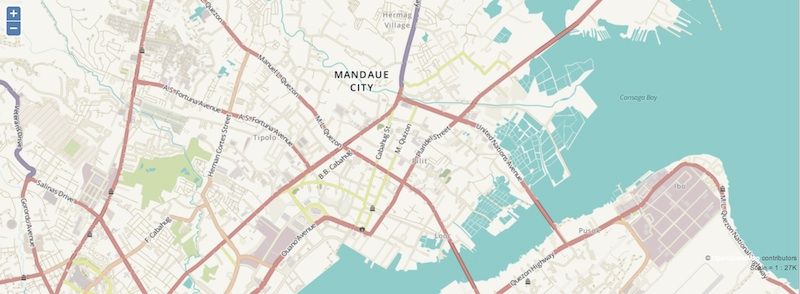
You can make HOT the background map on a map view by selecting the expand button labelled as “<“. You will then see a list of the available map backgrounds including openstreetmaps, google maps, google satellite and now HOT.
download

HOT Map Background Layer

The data on the map is the same as standard Openstreetmap however it is styled to show features in a way that is more relevant to aid workers.

Webforms

These has been updated to use the latest version of Enketo core which includes new features for collecting lines and shapes.

You can also add an appearance of “likert” to a select_one question to get the options displayed on a Likert scale. likert

Although webforms are now fairly mature I would not recommend their use in large critical offline surveys just yet.  In recent testing there were issues with slow response to user actions on even quite small surveys and in some browsers on some devices there were crashes when accessing location.  However feel free to try then out and share your experiences.

Results Filter

You can specify a filter on results.  For example as well as say, requesting a graph of problems by region, you can also specify that only results from women are returned.  Currently this where filter only works on select_one, select_multiple and text questions. However it will be extended to other types of questions in a future release.

settings

Settings Popup

If you click on the “Filter By Value” button on the settings popup, then you will be able to select the question to filter by.  Unfortunately at the moment you can select any question even though only the select_one, select_multiple questions and text will work.

Once you have set a filter on an analysis panel / view then the “filter By” Value” button will be green and the filtering will be included in the results description.  To remove the filter select the “Filter By Value” button and press “clear”.

filter

Filter popup

Miscelaneous Changes to Analysis

  • Paging of results. The forward and back buttons no longer scroll with the results so you don’t need to scroll all the way back to the beginning in order to select these buttons.
  • Total function. Previously if you had a numeric question and you wanted to see results grouped against another question such as region, then you could only get the “average” value per region.  Now you can get the “total”. For example the total area of all the farm plots by region.
  • Specifying units in server side calculations. You can now specify units in server side functions. An area function can return results in Hectares or meters squared.  A length function in kilometers or meters. These units are shown on graph labels. Because you can now select the units the number of places after the decimal point has been limited to 2.
  • “Bad” records are no longer shown in Map and Media views.  Previously if you looked at the whole of survey results then you would see the records that had been marked “bad” on the map.  If you want to review bad records the only way to do that is to create a table view for the whole of the survey, that is do not select a question.
  • The default title of an analysis panel is now set from the survey name if the user does not provide a title.
  • Analysis panels shown in expanded view are, nearly, full screen.  The only part of the web page that can still be seen, apart from the expanded panel, is the main menu across the top.
  • This button on the analysis page, has been replaced by 4 buttons each with a picture of the type of view / panel that is to be created; Graph, Map, Table and Media.

CSV Exports

CSV Exports have been replaced by a new function that is much faster.  Its faster both to export the data and to download it as the csv file is zipped before downloading. It is highly recommended that you use this instead of the XLS export when you have large numbers of results.  The main restrictions compared to exporting as XLS are

  • Some formatting is not performed
  • Only a single form can be selected and this form will be exported along with its parent and so on up to the top level form. So you can’t export data from more than 1 form at the same level in the hierarchy at the same time.
  • You can’t specify that a form will be exported as pivot or flat.  Effectively all the forms are exported as pivot and the number of records will be equal to the number of records in the selected form.

The above sounds more complex than it is.   If you try it then it should be obvious what is happening.

Exporting Surveys with Polygons and Lines

When exporting results of a polygon or line to excel the individual points are no longer included by default.  You can add them in if you like but this can make the exported spreadsheet large as in a pivot export an extra row is created per point.

Changes to Installation of the Server

  • Database upgraded to Postgresql 9.3
  • Support for Ubuntu 14.04 added
  • The need to set server IP address during install has been removed.  To install Smap on ubuntu you now just need to type ./install.sh into a terminal.  This change is in part to support installation on laptops where IP addresses change with each network that you connect to.

 

Smap Assessment Cycle

The Smap website has been updated to show what I am calling the “Smap Assessment Cycle”.

cycle

Smap Assessment Cycle

The 4 stages are:

  1. Collect.
    Collection of data using fieldTask, odkCollect or WebForms
  2. Assess.
    The analysis of data on the Smap Server where you can view graphs, maps and tables as well as perform data cleaning.
  3. Publish (Internally or Externally).
    The export of data to a spreadsheet, GIS system, report for use in decision making. Publishing could be to another IT system such as program management, asset management, patient record system etc.
  4. Act.
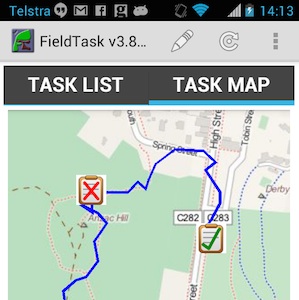
    Assign tasks to users. For Smap a task involves completion of a survey. However real world actions can be prompted by that survey. For example:
  • Read only question, “Replace water pump”
  • Image question, Take a picture of installed pump
  • Barcode question, record barcode of pump

Demonstration

These stages can be performed in any order. In this demonstration the published data has come from an external asset management system, and the cycle starts from the Publish stage.

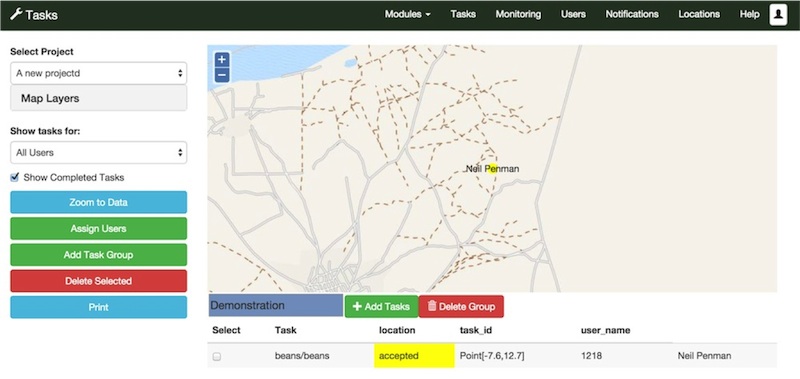
There is also no “Act” stage in the demonstration, refer to this post for more information.  Note this demonstration is using features that will be included in the 30th May Release of Smap including updates to the latest version of Enketo core.

Publish

The data has been published as map tiles using TileMill from MapBox. Tiles are used by google maps and most other online maps as they highly scalable. With TileMill you can style your maps to produce beautiful clear representations of the data that you want to show.

As well as the map images you can attach data to the maps. Hence if you select an item such as a road, or medical clinic, information on that item can be shown.

map1

Collect

The data associated with each item can be used as a key to conduct a survey using Smap’s webforms. By including the data in the survey URL, if there is any existing survey results that match, then they will be downloaded and set as the initial survey values. If there are no matches then a blank form will be returned.

form

Webform

Analyse

The data can be analysed using the standard Smap views of Maps, Graphs, Tables and Media.

analysis

Analysis

History of Changes

If you have updated existing data then that data is replaced and the graphs will only show the latest view. However a complete history of changes is kept and this can be seen by opening a table view and not specifying a specific question.

history

History of changes

Version 14.04 Bug Fixes

Just a small release this month due to the lateness of the March release.  The following bug fixes are included:

  • There is an option to group totals of uploads in the monitor page by device, week or day.  This should have been disabled unless a single survey has been selected.  If the total uploads for the whole project are being shown then its not possible to group these totals.
  • Addition of media such as photos to questions is now prevented if the question is not actually answerable by the user.  For example the survey start question and the device question are not shown to the user on the phone hence it is pointless adding a photo, video or audio to the question.
  • A security issue that allowed a user from one organisation to view data uploaded by another organisation has been fixed.
  • Upload of a template would fail if there were blank labels in some of the options in all of the languages.  This occured during a survey in Uganda when a partially completd survey was loaded for testing while the translations were being prepared.
  • If the user is not authorised to submit a survey now they will get an error message and can resubmit the results when they are authorised to do so. Currently the surveys are loaded onto the server successfully but then an error is reported on the monitoring page and the results are not applied to the database.  This can mean that the uploads are missed.

Version 14.03 now available for download

You can download the server application from http://www.smap.com.au/downloads.shtml

This is a major release and if you are upgrading from a previous version I recommend that you backup your database first. Also if upgrading you should add the following directive to /etc/apache2/sites-available/default and /etc/apache2/sites-available/default-ssl.  This will make the fieldManager javascript files available to people accessing reports without requiring them to enter a password:

<Location /fieldManager/js>
allow from all
Satisfy any
</location>

This release has been tested with Ubuntu 12.04 LTS.  There may be some issues with web forms when using Ubuntu 14.04 or any other Ubuntu version that uses Apache 2.4.


Forward Results to another Server

Beginning in Smap version 14.03 you can add forwarding to a survey template.  This will result in each submitted result being forwarded on to the target server.

Key characteristics

  • Each forward link sends results from a single survey template to a single remote server
  • You can add multiple forward links to a template allowing you to forward results to many remote servers
  • Submissions are sent in one direction only. Hence if the target server is receiving results from multiple sources it will have a different view of the results than each of the sources
  • Forwarding links can be added to the target server as well. These can point back to the original source server but it ahs to be to a different survey on that server
  • Existing results will be forwarded if you add forwarding to a template that already has submitted results
  • Results will queue until there is a network connection before being forwarded
  • The target server can be another Smap server or any server that supports Java Rosa such as ODK Aggregate

Offline laptops

One way of using this forwarding feature is to install Smap on a laptop.  This laptop can be used to aggregate and analyse data collected on mobile phones in areas that do not have a reliable Internet connection.  You can upload the results from the phones to the local laptop over a wi-fi hotspot.  Once you connect the laptop to the Internet it can forward the results onto a cloud server so that they can be worked on by a distributed team.

Community Laptops

image (6)

Community laptops are an extension of the “offline laptop” concept.  Each community can maintain its local view of data collected on the phones.  However they can set up a forward link so that a consolidated view of all the data from all the communities can be aggregated.

Demonstration

The following video shows the forwarding of results from a Smap Server to an ODK Aggreate server.

How to add a forward link

  1. Create the same survey template on the local and remote server.  These templates can have different names on each server but should be the same template.  A good way to do this is to download the template as an XML file from one of the servers and then upload it to the other.
  2. On the source server, find your template on the template management screen and click the upward pointing arrow next to its name
  3. Click the button “Add Forward”
  4. Enter the url of the destination server
  5. Enter a user ID and password.  You should use a user id that only has privileges to complete surveys (enum) as the password is stored in the database. So don’t use your Admin user id!
  6. Press the button to refresh the list of available surveys on the remote server
  7. Select the survey that you want to update
  8. Save

You can monitor forwarded results on the monitor page by selecting the “forward” radio button.

Smap version 14.02 Multi Tenant

Announcing the release of Smap Server version 14.02.  The major new feature is that multiple organisations can now be put on a single installation of Smap, so called multi-tenant.  The administrators or analysts in each of these “organisations” cannot see projects or surveys in any other organisation however within each organisation the administrator can still create projects and users.

Multi-Tenant

When you install the Smap server it will create a user with a login id of “admin”.  This user has the “organisational administration” role.

multi1

If the user has the organisational admin role, they will be able to add organisations and move users and projects to other organisations.

multi2

  1. Select “Add Organisation” to create a new organisation
  2. Select users and projects then click “Move” to move these projects and users to a different organisation.  The Organisation Administrator can move themselves as well as other users.

Users, including administrators, without the organisational administration role will only be able to work within the organisation that they have been assigned.  Each user can be assigned to only one organisation.

The name of the organisation is shown after the users name at the top right of each screen.  An ‘@’ symbol separates the organisation name from the person’s name.

multi3

Export surveys with location as KMZ or VRT

Two new export formats have been added in this release.  Due to the increasing number of format options the radio buttons that were used to select the format have been replaced by a drop down selection.

  1. KMZ / KML files can be loaded directly into Google Earth.
  2. VRT files are accompanied by a CSV file holding the data.  This is useful for geospatial processing including being imported into a GIS such as google maps engine. VRT is a document format used for describing vector or raster geospatial data. In this case the actual data is in a CSV file and the VRT file identifies the type of geometry (Linestring, Polygon or Point).

    Smap can also export shape files however they are limited to 255 attributes and even worse the length of the attribute name is restricted to 10 characters which results in attribute names being truncated and difficult to differentiate. Whereas the overall limit on the number of attributes per feature in google maps engine is 550 with a maximum name length of 64 characters.

Check on maximum questions per form

There is a limit of 1,600 columns in each database table.  Because the results from each form are put into separate database tables then this imposes a limit on the size of each form. Each question is stored in its own column and also each option in a multiple choice question gets its own column.  10 columns have also been reserved for the unique key, key to the parent table, start date, end date, device id and user identifier.

When uploading a template the server now checks the number of questions and multiple choice options and will report an error if there are too many.

msg

Example error message when there are too many questions in a form

Fortunately it is straightforward to move excess question into another form and this should not affect either data collection or analysis. More details here.

Allow access to attachments without an account

The default installation no longer requires a user to have a valid user id and password to view an attachment such as a picture.  Instead each attachment has a name created from 28 random characters.  For example: 4e2252ad-39db-46cb-b50d-aubb94ca353a.PNG. This will simplify integration with other systems while still preventing unauthorised access to attachments.

Some Bug Fixes

  1. Template files with a suffix of “.XLS”, that is in capitals were not being identified as Excel files. Now the test is case insensitive and file extensions can include capitals.
  2. Results from surveys with unicode characters, that is Arabic, Chinese, Japanese, Thai etc, could not be be exported.  These can now be exported and the name of the download file will be the same as the survey name.

Controlling access to survey results

There are 3 roles that can be given to users od Smap Server:

  1. Admin.  Can create new projects and assign themselves, or any other user, to projects
  2. Analyst.  Can view and export results, create graphs, load new survey templates.
  3. Enum. Can download survey templates to a phones and submit results.

Hence you can restrict a user from accessing surveys that they are not involved with, by putting surveys into projects.  Users can then be assigned only to those projects that they are allowed to access.  As long as the user does not have the admin role then they will not be able to give themselves access to other projects or create new projects.


An issue with the current solution is that you may have multiple areas of your organisation that work independently hence you will want to create a user with the “Admin” role for each area.  But these admin users will be able to view and delete survey data collected by other areas.

The next release of Smap Server (14.02) due in late February will address this issue by adding the concept of an “organisation”. Even admin users, within 1 organisation will have no access to data in other organisations.  You will be able to create an organisation for each area of your company.

Smap Version 13.12 available for download (and new download Site)

You can now find a list of Smap Server versions available for download at http://www.smap.com.au/downloads.shtml. Version13.12 as well as training documents are now available from that location.

Older versions of the server can still be downloaded from the Google code site.  https://code.google.com/p/smap-suite/downloads/list. Search for “Deprecated Downloads”.

The download is actually hosted on Amazon S3.  This move was required because Google no longer allow new downloadable files to be added to https://code.google.com.  Hence the training documents have all been moved to google drive and the large server files to Amazon S3.

Time Zones in Reports and Graphs

Its timely to look at the use of time zones in reports and graphs since we will shortly be releasing a version of Smap that includes trend analysis.  This will allow you to create graphs and maps  showing trends in data against time.

The most common date columns in Smap reports are the start and end of the survey.  When these are shown in a table on the Smap server the time zone is included. For example the following is from a survey that started at 7:10pm in a time zone GMT + 11.

  • 2012-03-13 19:10:27.412+11

Note the time zone is shown as +11. When the survey is exported to Excel the time zone information is removed and the time is shown as GMT.

  • 13/03/2012  8:10:27 AM

This is because Excel can’t include the time zone in a date cell.  (At least I don’t think it can). However you can modify the time back to local time.  Dates in Excel are stored as floating point numbers.  If you add “1” to this date it will increment by 1 day.  So to change the time to a time zone of GMT + 11 you can add 11/24.

In a future release of Smap I will add an extra column for the time zone of the survey so that this information is available in the report.

Now getting back to the trend analysis. The times in the x-axis of trend graphs will be shown in the local time of the survey without timezone information.  So for the example above where the time interval is set to show results by the hour.  That survey result will fall within the x-axis period of:

  • 2012-03-13 19

In summary all dates and times in reports are in local time except when exported to Excel when they are shown as GMT.

Release of Smap Data Cleansing

Announcing the release of Smap Evaluation Tools Server version 13.11. This version has concentrated on some data cleansing functionality which as been requested by a team assessing the needs of people affected by Typhoon Haiyan.  The Speed Evidence project has provided funding.

New functionality

  1. Updating data on the server prior to export. (Data Cleansing).
  2. Ability to hide the graph legend as this sometimes obscures the data. http://blog.zarkman.eu/hiding-gaph-labels/
  3. Bundling of Smap Uploader
  4. Support for Apache 2.4

Data Cleansing

The following video shows how to update text values on the server.

The analyst training material has also been updated to included more detailed instructions data cleansing.

Other changes

A bug that prevented the creation of graphs when question names included dashes has been fixed.

Uploading of Polygons and Lines has been made more robust.  Previously if a valid Polygon had not been recorded (more than 2 points) then the survey was not uploaded.  Now the rest of the data is uploaded and the invalid Polygon / Line is discarded.

Availability

A downloadable tar file of the updated server should be available tomorrow.  Hosted servers will be progressively updated over the next few days.